
Connect your Shopify store
You need only the permanent .myshopify.com address. Shopify handles the approval securely.
Find the permanent Shopify address
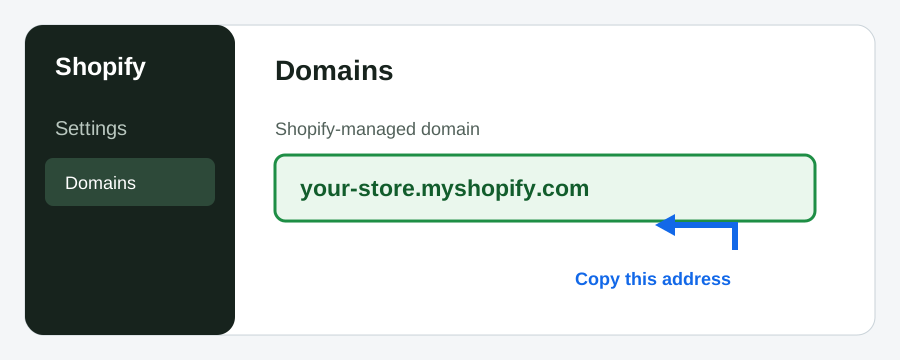
Open Shopify Admin. The browser address will look like admin.shopify.com/store/store-name. Your permanent address is usually store-name.myshopify.com. If uncertain, open Settings → Domains and copy the address ending in .myshopify.com.
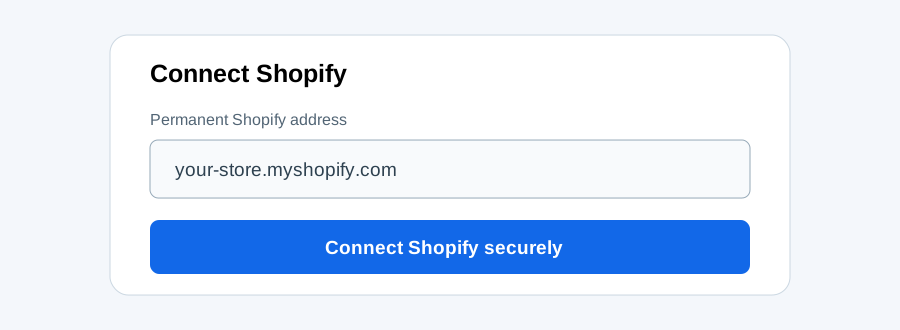
Click Connect Shopify securely
Return to MoveMyCart, enter that permanent address, and click the blue connection button.
Approve MoveMyCart on Shopify
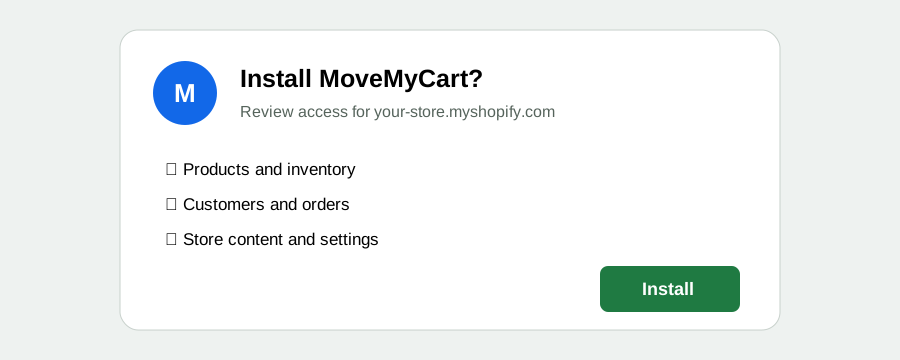
Shopify shows the store and requested permissions. Confirm that the store is correct, review the access list, and click Install.
Look for Connection verified
Shopify returns you to MoveMyCart. A green message confirms the connection. You do not need to copy a token.
Private testing only: manual Client ID and secret
This fallback is for MoveMyCart's private test store or a platform outage. It is not the normal customer process.
- Open the Shopify Dev Dashboard and select the test connector.
- Open App settings.
- Copy the Client ID and reveal the Client secret.
- Paste both directly into MoveMyCart. Never send the secret in email or chat.