SHIFT4SHOP · ABOUT 2 MINUTES
Connect your Shift4Shop store
The normal connection opens Shift4Shop so you can approve MoveMyCart. No private key should be copied by a customer.
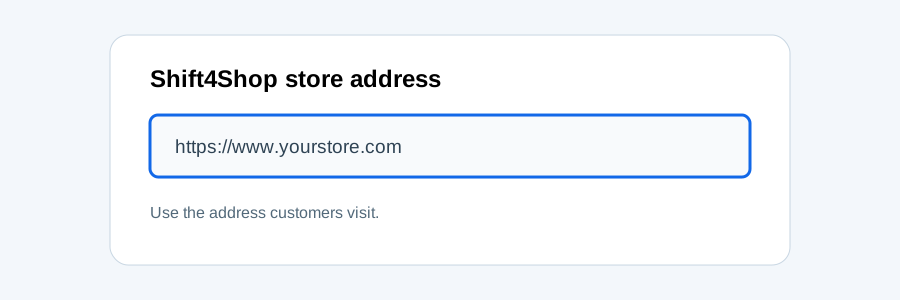
Enter the store address
Use the public HTTPS address customers use to visit the store. MoveMyCart will identify the secure API address during authorization.
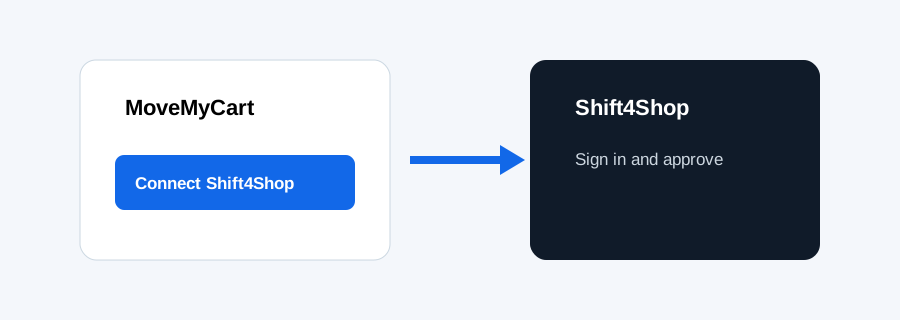
Click Connect Shift4Shop securely
MoveMyCart opens the Shift4Shop Online Store Manager. Sign in if Shift4Shop asks you to.
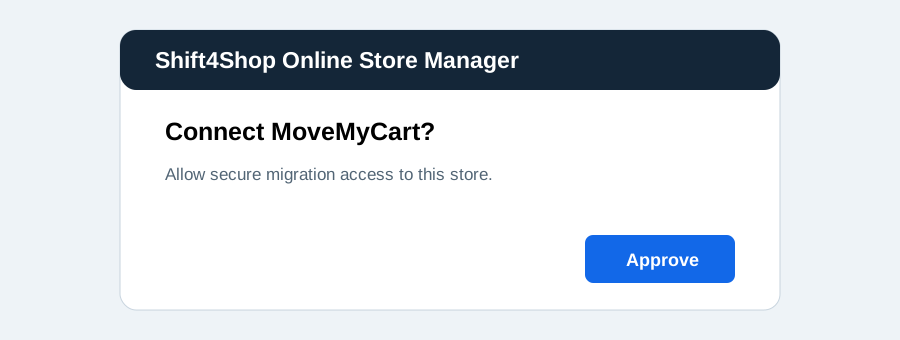
Approve MoveMyCart
Review the requested access and approve the connection. Shift4Shop then returns you to MoveMyCart.
Confirm the green connection message
MoveMyCart tests the store immediately. If the test fails, the page explains exactly what to correct.
Manual fallback with pictures
Use this only if the automatic Shift4Shop installation is unavailable.
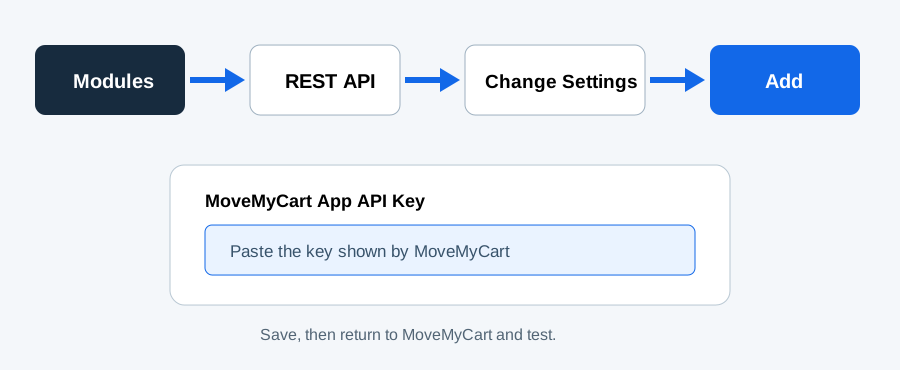
- Sign in to Shift4Shop Online Store Manager.
- Open Modules.
- Search for REST API.
- Click Change Settings, then add the MoveMyCart App API Key shown on your connection page.
- Copy the resulting token directly into MoveMyCart and test it.